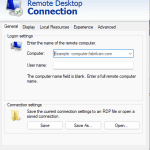
Managing files between your server and local computer is a core part of maintaining any website or application. Understanding how to connect to Windows FTP from VPS allows you to move data securely, update files efficiently, and manage backups without downtime. FTP, short for File Transfer Protocol, is one of the simplest ways to control files stored on your virtual private server. Learning how it works—and setting it up correctly—helps developers and business owners maintain a smoother workflow while keeping their environments safe.
What FTP Is and Why It Matters
FTP is a protocol designed for transferring files between a client and a server over the internet. When you host a website or application on a VPS, you often need to upload files such as images, scripts, or configuration documents. FTP enables direct access to these files from your computer, saving you time and effort compared to browser‑based tools. Most modern setups use secure versions of FTP such as FTPS (FTP over SSL) or SFTP (FTP over SSH) to protect data while transferring sensitive material.
Setting Up FTP on a Windows VPS
Before connecting, you should make sure your Windows VPS has an FTP server installed. Most Windows Server editions include IIS (Internet Information Services), which provides a built‑in FTP feature. You can enable it by opening the Server Manager, selecting “Add Roles and Features,” and choosing “FTP Server.” Once the installation completes, configure your FTP site by assigning an IP address, defining a root directory, and setting authorization rules for users. It’s critical to create strong usernames and passwords to prevent unauthorized access.
Connecting from an FTP Client
After configuring your Windows VPS, you’ll need an FTP client on your local computer. FileZilla, WinSCP, and Cyberduck are popular options. Open your FTP client and enter the following details:
Host – the public IP address of your VPS
Port – 21 for standard FTP or 990 for FTPS
Username and password – credentials you created on your server
Once connected, you’ll see the server’s file directory appear on your screen. You can drag and drop files between your local system and your VPS easily. To keep your files organized, always upload updates to the correct folder, such as your website’s root directory or application folder.
Using Secure FTP Protocols
If security matters—and it always does—consider using SFTP, which encrypts both credentials and file contents. To set up SFTP, ensure that SSH services are running on your VPS. Most VPS providers make SSH access straightforward through their control panels. Your FTP client will connect over port 22 instead of 21, and all data exchanges will be protected from interception. This method is particularly useful for developers handling confidential business applications or client projects.
Troubleshooting Connection Issues
Sometimes users experience errors such as “530 Login Authentication Failed” or “Connection Timed Out.” These problems usually occur due to incorrect credentials, blocked ports, or firewall rules. Start by confirming that FTP services are running correctly on your VPS. Then check that your server’s firewall allows incoming connections to ports 21 and 22. You can adjust rules using Windows Firewall settings or your VPS provider’s management panel. If you’re still unable to connect, verify your IP whitelist and ensure passive FTP mode is enabled in your client’s settings.
Best Practices When Using FTP on VPS
Always keep software updated, including your FTP client and server modules. Limit user access by creating individual accounts for different team members and setting clear permission levels. Never share login credentials publicly and avoid using plain text passwords. Enable automatic backups on your VPS so you can restore data quickly if an accidental deletion occurs. Schedule maintenance checks to ensure that your FTP server remains stable and secure over time.
Why Understanding FTP Helps Your Workflow
Knowing how to connect to Windows FTP from VPS speeds up file management, reduces downtime during updates, and improves operational efficiency. Developers can deploy new site features faster, businesses can manage product content easily, and system administrators get precise control over server resources. Whether you run a small website or maintain multiple web applications, mastering FTP is fundamental to professional server management.
Connecting to FTP from your Windows VPS is not just about moving files—it’s about maintaining structure, ensuring security, and optimizing your workflow. With proper setup and authentication, you gain seamless access to your server from anywhere. If you need expert configurations or hosting environments that simplify this process, visit windows-vps.org for comprehensive resources and reliable VPS solutions. By understanding FTP inside and out, you keep your projects running efficiently and securely every single day.